
Home Products Collab Vendor
Collab VendorSUPPLIER ONBOARDING & VENDOR PORTAL

From invitation to vendor created — without the email chain.

One platform for onboarding suppliers, assessing risk, running approvals, and letting vendors quote and track orders themselves. Approved vendors land straight in Dynamics 365 F&O.

See how it works
2 portalsADMIN + VENDOR-FACING
Multi-stageRISK REVIEW & APPROVALS
D365 nativeVENDOR CREATED IN F&O
No spreadsheets, no chasing
Full audit trail, end to end
Golden Steels & CopperPROSPECT PR0772 · DOMESTIC SUPPLIER
INVITED
InvitedEMAIL SENT
VerifiedOTP
Registered5 SECTIONS
AssessedRISK
Approved5 OF 5
APPROVALS COMPLETED0 / 5
A1PENDING
A2PENDING
A3PENDING
A4PENDING
A5PENDING
Vendor created in D365 F&OACCOUNTS PAYABLE › ALL VENDORS
RISK LEVEL
VENDOR GROUP
DOCUMENTS0
The Shape Of It

Two portals. One system underneath.

Your procurement team and your suppliers each get an interface built for what they actually do — working from the same records.

◆ INTERNAL · YOUR TEAM

Vendor Onboarding Hub

Where procurement invites suppliers, reviews what they submit, scores risk, and moves them through approval.
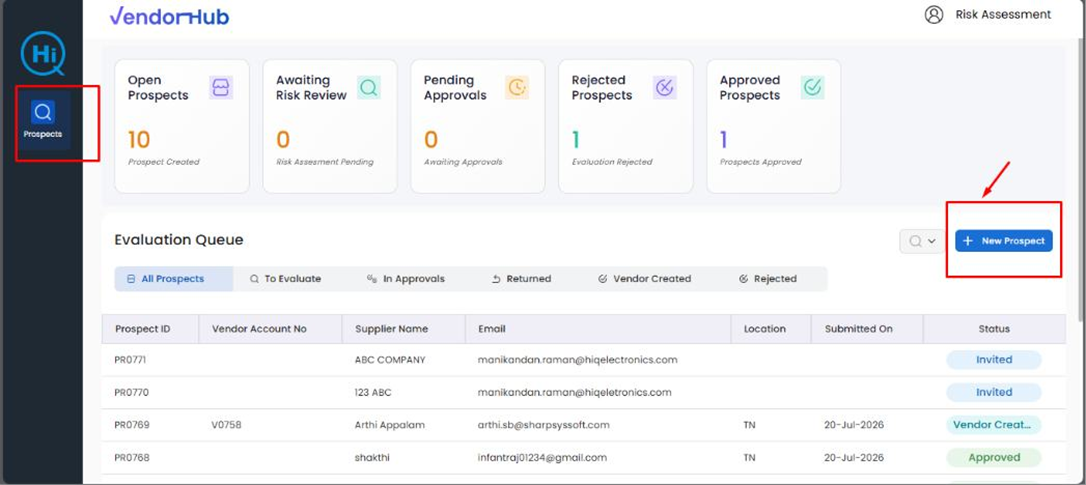
Vendor Onboarding Hub SCREENSHOT · EVALUATION QUEUE
  • Invite suppliers and track every prospect in one queue
  • Review registration forms, documents and risk in one workspace
  • Route through multi-approver sign-off with comments
◆ EXTERNAL · YOUR SUPPLIERS

Vendor Portal

Where approved vendors see RFQs, submit quotations line by line, and track the purchase orders that follow.
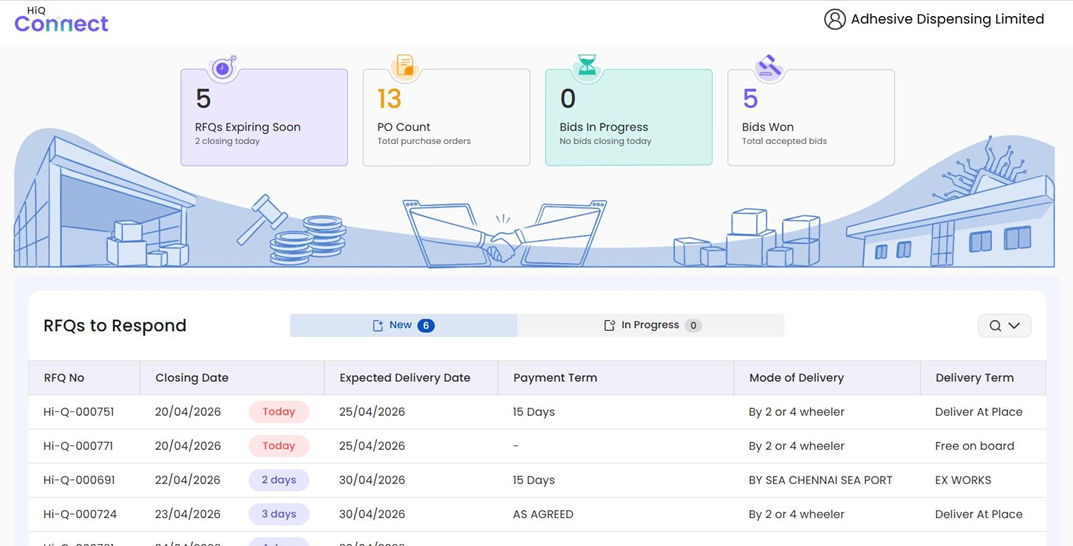
Vendor Portal SS SCREENSHOT · PORTAL QUEUE
  • Secure login with one-time password verification
  • Respond to RFQs with unit prices and confirmed dates
  • Track PO status and invoice information without emailing
Onboarding Flow

Seven steps from invitation to approved supplier.

Every stage is recorded, so nobody has to ask where a supplier got stuck.

Create the invitation

Procurement raises a supplier invitation from the onboarding module — company name, supplier group, and the email it goes to.
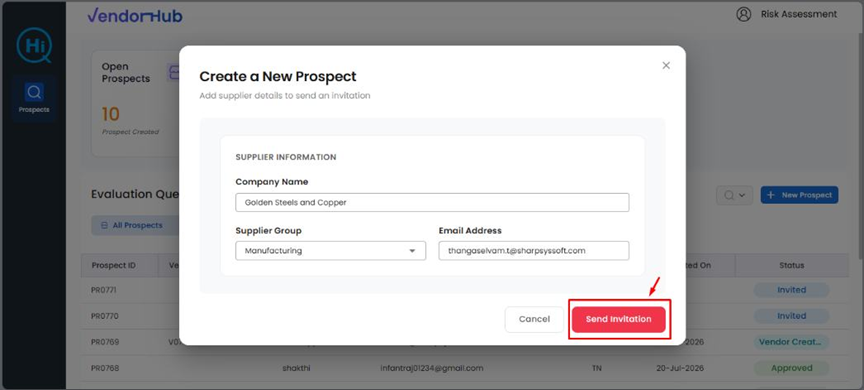
SUPPLIER GROUPPROSPECT ID
01
Create Prospect SS CREATE PROSPECT

Supplier receives the link

An invitation email goes out with a secure registration link. No account to create first, no portal credentials to chase.
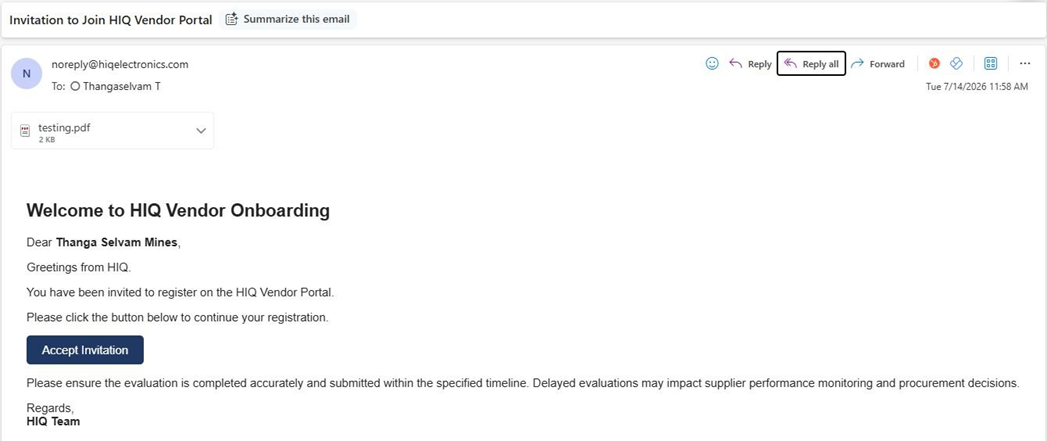
EMAIL INVITESECURE LINK
02
Recieve Link SS INVITATION EMAIL

Email verification

The supplier verifies their work email with a one-time password before any business data is entered.
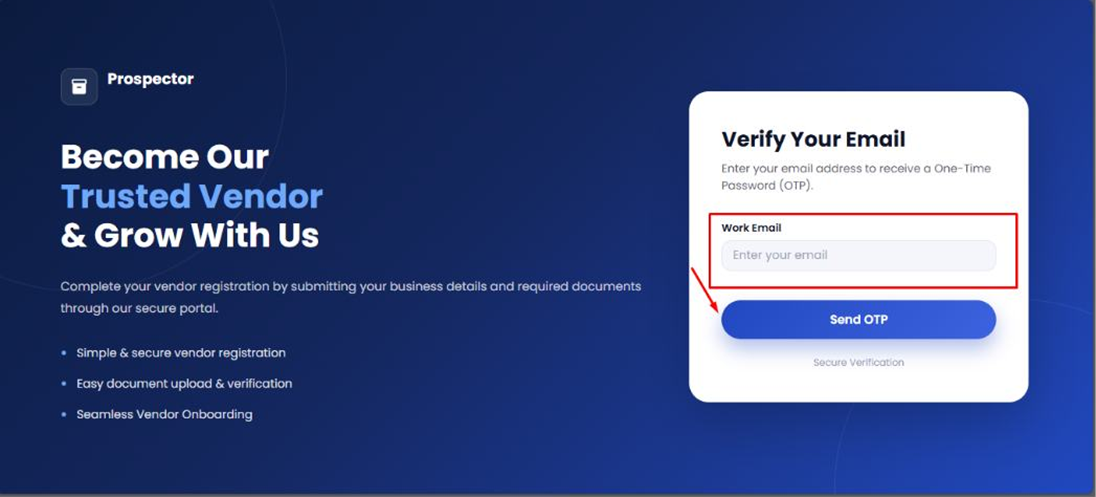
OTPTIME-LIMITED
03
Verify Email SS VERIFY EMAIL

Registration form

A guided five-section form — general information, financial and commercial, distributor details, quality management, and declaration. Save as draft at any point.
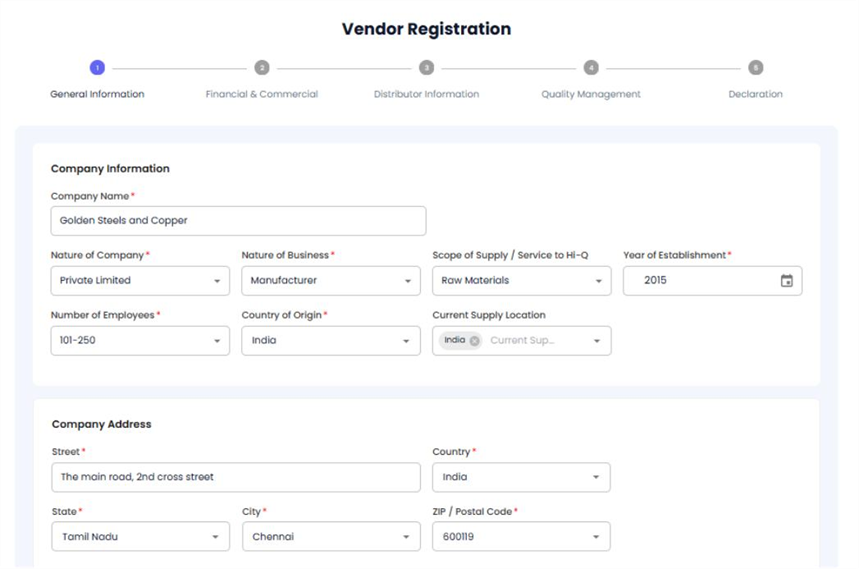
5 SECTIONSSAVE AS DRAFTPROGRESS BAR
04
Registration SS REGISTRATION

Compliance documents

Certifications captured with status, certificate number, validity date and the file itself — ISO 9001, AS9100, ISO/IEC 17025, NABL, factory licence and more.
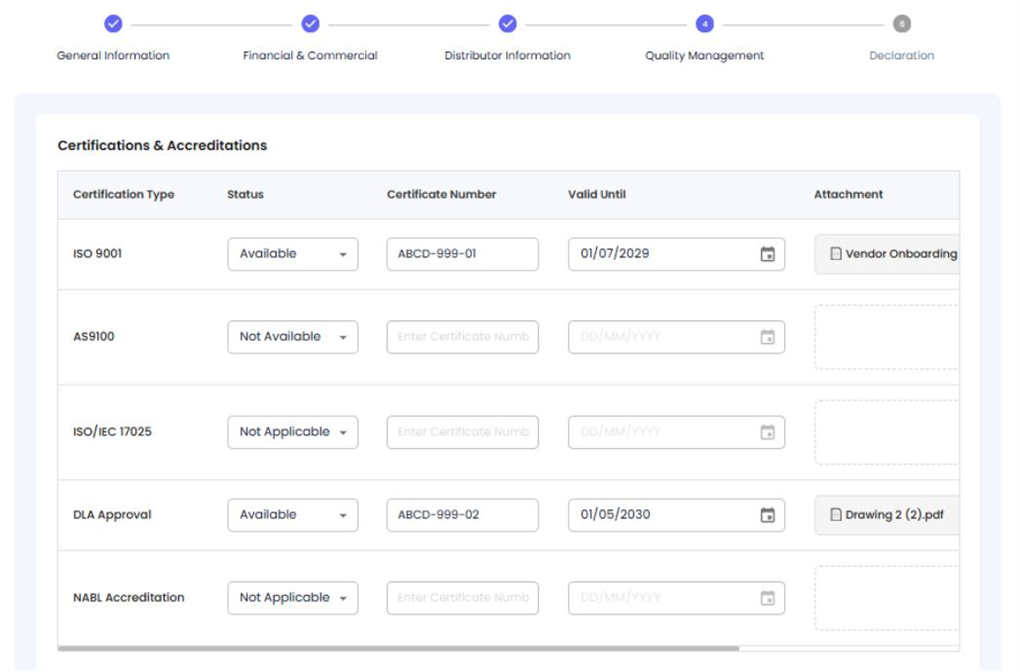
VALID UNTILATTACHMENTSEXPIRY TRACKING
05
Compliance SS COMPLIANCE DOCUMENTS

Quality questionnaire

A structured assessment the supplier answers themselves — calibration, inspection capability, corrective action, counterfeit prevention, shelf life.
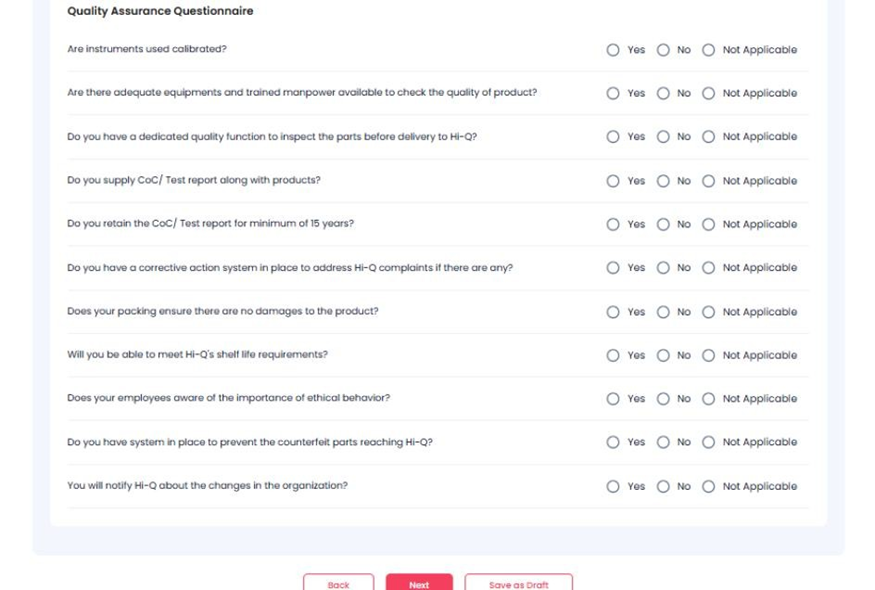
YES / NO / N/AMANDATORY
06
Questions SS QUESTIONNAIRE

Review & submit

The supplier confirms the declaration and terms, then submits. Everything they entered arrives in your evaluation queue as one record.
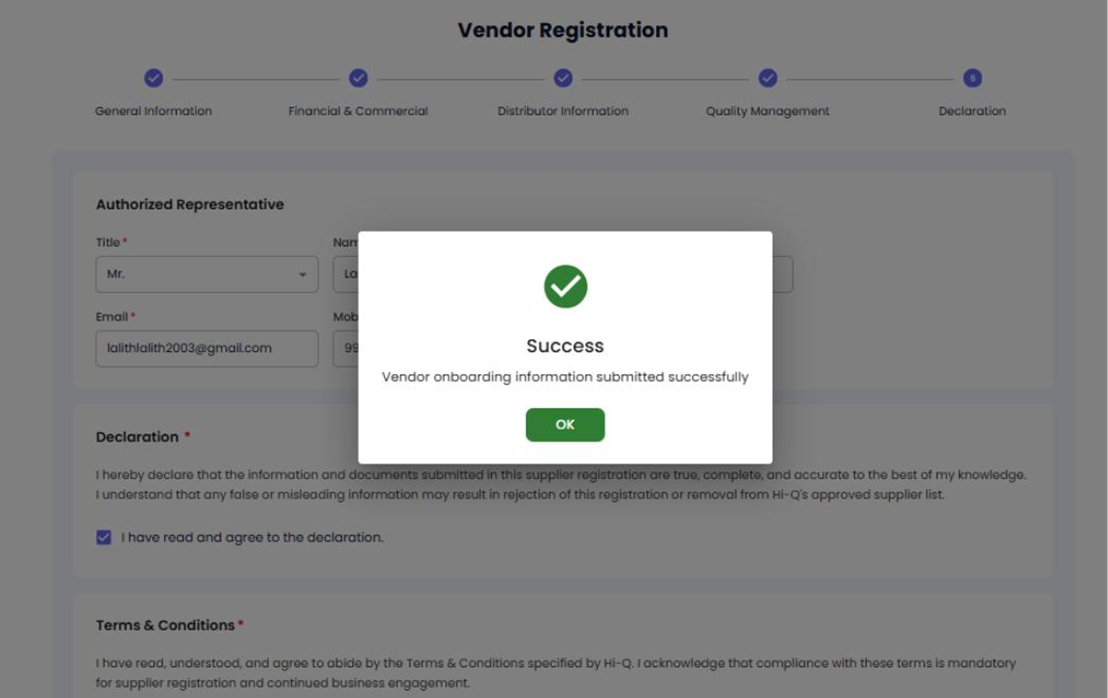
DECLARATIONTERMS ACCEPTEDTIMESTAMPED
07
Sucess SS SUCCESS
Evaluation & Approval

Risk scored, then signed off — on the record.

The evaluator works through the submission in one workspace, records a risk level against each area, and sends it up the approval chain.

Risk assessment

Manufacturing process — machine availabilityLOW
Material inspection — measuring instrumentsMEDIUM
Logistics — transportationNOT APPLICABLE
Service — response to enquiryMEDIUM
Quality assurance — product consistencyLOW

Each criterion is marked applicable or not. Where it applies, a risk level and a written observation are required — and a vendor group must be set before the assessment can close.

Evaluator decision

Submit for approvalMoves the prospect into the approval chain.
Return to prospectSends it back for corrections or missing information.
Reject prospectEnds the onboarding process, with the reason recorded.

Whichever route is taken, the decision, the comments and the person who made it are all stored against the prospect.

Approval chain 4 / 5 APPROVALS COMPLETED · 0 REJECTED · 1 PENDING
A1Approver 1PENDING
A2Approver 2PENDING
A3Approver 3PENDING
A4Approver 4PENDING
A5Approver 5PENDING

Each approver sees the full registration, the documents and the risk assessment before deciding — and leaves a comment with their decision. When the last one approves, vendor creation is triggered automatically.

Vendor Portal

What your suppliers actually see.

Built so a vendor can log in, understand what needs a response today, and act on it — without training.

SCREENSHOT · DASHBOARD
5RFQS EXPIRING SOON
13PO COUNT
0BIDS IN PROGRESS
5BIDS WON

Dashboard

Four numbers at the top, then the list of RFQs still inside their submission window — closing soonest first.

  • KPIs for expiring RFQs, PO count, bids in progress and bids won
  • New and In Progress tabs so nothing half-finished gets forgotten
  • Urgency badges — "Today", "2 days", "3 days" — right on the row
SCREENSHOT · RFQ SUMMARY
106TOTAL RFQS
40ACTIVE
34SUBMITTED BIDS
72EXPIRED

RFQ listing

Every request grouped by where it stands, so a vendor can filter to exactly the set they care about.

  • Tabs for New, In Progress, Submitted, Completed and Expired
  • Closing date, expected delivery, payment term and delivery term on every row
  • A live countdown on the RFQ itself — days, hours, minutes remaining
SCREENSHOT · REPLY TO RFQ

Submitting a quotation

Header terms first, then a line for every material. The vendor's response sits directly beside your requirement, so nothing is quoted against the wrong quantity.

  • Delivery date, delivery term and mode of delivery at header level
  • Unit price, net amount, confirmed delivery date and remarks per line
  • Respond to all items or just some — "1 of 3 submitted" is a valid state
  • Save as draft and finish later, or submit to lock it in
SCREENSHOT · PURCHASE ORDERS

Purchase orders

Every PO raised against their accepted quotations, with the detail behind it one click away.

  • PO number linked back to the originating RFQ
  • Status tracked as Open, Received, Invoiced or Cancelled
  • Line items, net amounts and invoice information with due dates
  • Download the PO document directly from the list
SCREENSHOT · VENDOR PROFILE

Vendor profile & materials

Company details, contacts, and the exact list of materials the vendor is approved to supply.

  • Company name and vendor account ID as held in your ERP
  • Registered email, phone and address on file
  • Material list with codes, descriptions and validity — only these appear in their RFQs
Always Visible

Every record carries a status.

Both sides see the same state at the same time — which removes most of the "any update on this?" email traffic.

NEW

An RFQ has been shared but not yet opened by the vendor.

IN PROGRESS

The vendor has started filling in a response and saved it as a draft.

SUBMITTED

The quotation has been submitted and is locked from further editing.

UNDER REVIEW

Your procurement team is evaluating the submitted line items.

ACCEPTED

The line has been approved and can proceed to a purchase order.

REJECTED

The line was not selected on this occasion.

EXPIRED

The submission window closed before a response was received.

VENDOR CREATED

Onboarding is complete and the vendor account exists in your ERP.

The Handoff

Approved here means created there.

The moment the final approver signs off, vendor creation is triggered in Dynamics 365 Finance & Operations. Nobody re-types a supplier record into the ERP.

  • Vendor account generated automaticallyThe account number comes back into the portal and onto the supplier's profile.
  • Vendor group and currency carried acrossSet during the risk assessment, applied on the ERP record — not re-keyed later.
  • Immediately available for procurementThe supplier can be issued RFQs and purchase orders straight away.
  • The paperwork stays attachedCertificates, questionnaire answers and approval comments remain against the record for audit.
Vendor Onboarding Hub SCREENSHOT · DASHBOARD
Vendor V0761 · Domestic · INR
1 recordPer supplier, from first invitation through to purchase orders
0Re-keying between onboarding and the ERP
Full trailEvery document, decision and comment retained for audit
Self-serveVendors quote and track without emailing your team
Next Step

See Collab Vendor with your own supplier process.

A walkthrough of both sides — onboarding a supplier end to end, then quoting an RFQ as a vendor. We'll map it against how you do it today.

See all products